Automated Email Response Templates: 14 Free Examples
Automated email response templates are pre-written replies that your email tool sends on its own the moment a customer gets in touch. A good auto-reply keeps every customer informed, sets a clear expectation, and frees your support team to focus on the messages that genuinely need a person.
This guide explains how auto-replies work, the thinking behind a strong automated reply, and 14 ready-to-use templates you can copy today. It also covers how to set up an auto-reply in your email client, and how to write templates of your own once the examples run out.
Whether you run a support desk, a sales pipeline, or a one-person business, the same idea holds: a fast, professional auto-reply beats silence every time. Customers remember how quickly you answered, and an instant acknowledgment is the easiest fast answer any business can give.
What are automated email response templates?
An automated email response template is a pre-written message that an email tool sends automatically when a specific event happens. That event might be a new inquiry, an order, a support request, or simply a message arriving outside your business hours.
The template holds the wording; the autoresponder handles the timing. Together they make sure everyone gets an immediate, consistent auto-reply without anyone on your team lifting a finger.
These templates are not a replacement for real support. They are the first point of contact, the one that confirms you received the email and tells the customer exactly what happens next.
Think of an auto-reply as the front door to your inbox. A clear, friendly message sets the tone for everything that follows, while a missing or robotic one leaves customers wondering whether anyone is there at all.
The best templates are reusable. You write the wording once, connect it to a trigger, and the same polished message goes out for months without further work. That is the quiet power behind a good library of templates.
Why auto-replies matter for the customer experience
Customers expect a fast reply. An auto-reply gives them an immediate acknowledgment, even at 2am, which is the single easiest way to lift satisfaction and protect the customer experience across a busy support queue.
An automated email also keeps the customer experience steady when your team is offline. Instead of silence, customers get a clear answer: we have your email, here is when we will respond, and here is what to do in the meantime.
There is a retention angle too. Quick, professional auto-replies build trust, and strong customer retention is far cheaper than winning new customers. Good customer service like this is a small detail that quietly improves how customers see the whole business.
The effect compounds. A business that answers instantly, every time, looks more dependable than a competitor who replies in two days, and people notice that difference long before they ever speak to a person.
Automation also saves real time. Every routine acknowledgment that nobody types by hand is time returned to the harder questions that need human judgement. A small support team can cover far more email this way, and customer service quality holds even on the busiest days.
How auto-replies work
Every auto-reply runs on the same simple logic: a trigger, a template, and a send. Understanding the three parts makes the whole system easy to set up and easy to improve over time.
Triggers
A trigger is the event that fires the auto-reply. Common triggers include a new email arriving, a web form submission, an order being placed, or a support ticket being created.
Most email tools also let you narrow a trigger, so a reply fires only for a message that lands after business hours or one that contains a chosen keyword. The more precise the rule, the more relevant the auto-reply customers receive. Map these events first: list every time a customer makes contact, and each one becomes a candidate for its own template.
The autoresponder and workflows
The autoresponder is the tool that watches for the trigger and sends the template. Email clients, help desks, and email marketing platforms all include an autoresponder of some kind, and so do most customer support systems. Your autoresponder does not have to be expensive; even a free one is enough to begin.
Start with one autoresponder and one template. For anything beyond a single message you can build workflows, where one automated email leads to another based on what the customer does next. Such a workflow can confirm an order, then send a shipping update, then ask for feedback, all on its own.
Personalization
A good autoresponder feels human because of personalization. Tokens are placeholders, such as the customer name or an order number, that the tool fills in automatically for each sender.
Those tokens turn one template into thousands of personal-looking messages. An auto-reply that opens with the right customer name reads far better than a generic "Dear customer", and it costs no extra effort once the placeholders are in place.
Best practices for auto-replies
A weak auto reply is worse than none, because it wastes the customer's attention. The practices below make these messages useful to customers rather than annoying, and they keep your support consistent whatever autoresponder you use.
Keep it professional and on-brand
An auto-reply is still a message from your business, so keep the tone professional and consistent with your brand. A warm, professional response reassures customers that a real, organized team stands behind the inbox.
Match the voice to the rest of your customer service. If your brand is friendly and casual, it should sound that way too, so the jump to a human answer never feels jarring.
Personalize every message
Use your tokens so each auto-reply greets the sender by name and refers to their request where possible. A personalized message feels like service; a generic one feels like a wall. Even small touches help, such as pulling in an order number or a ticket number so the customer can see the message is really about them.
Be clear and concise
Keep every automated email response short. Confirm you received the message, say what happens next, and stop. A concise response respects the customer and is far easier to read on a phone.
Set a clear response time
Always tell customers when to expect a human answer. A specific response window, written plainly as "within one business day", sets the right expectation and stops a customer from sending the same email twice.
Offer a next step
End every auto reply with a next step: a link to your FAQ, your help center, or an alternative contact for urgent issues. Giving customers service options while they wait turns a holding message into a genuinely helpful one.
14 automated email response templates
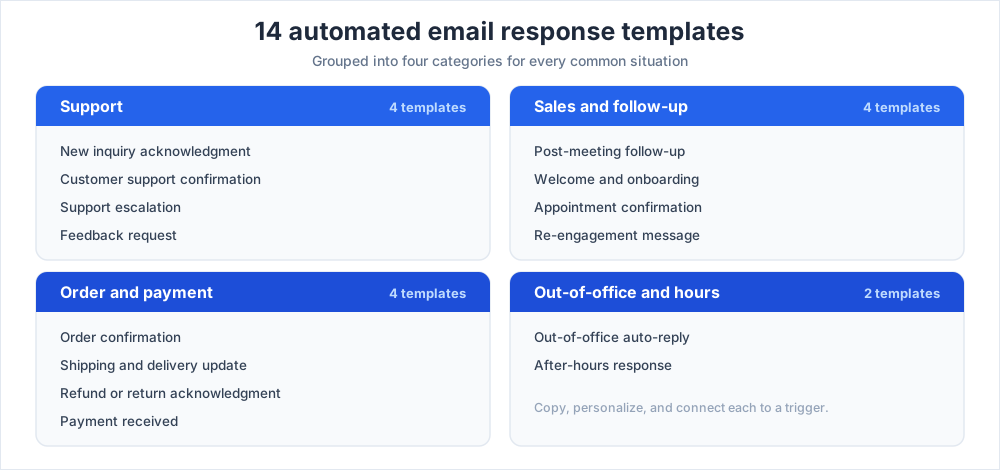
These 14 templates cover the situations a business faces most. Treat each one as a starting point: copy the examples below, swap the bracketed details, and adjust the tone to fit your brand and your audience.
These examples are short on purpose. Short messages get read; long ones get skipped. Replace the bracketed placeholders with real tokens in your own email tool, so every message uses the customer name and order details that belong to that sender.
New inquiry acknowledgment
The first reply to a new inquiry. It confirms receipt and sets the expectation.
Template: "Hi [Name], thank you for reaching out. This auto-reply confirms we have received your inquiry. A team member will answer within one business day. In the meantime, our help center may have a quick answer for you."
Customer support confirmation
An automated reply for a new customer support request, so the customer knows the ticket is open.
Template: "Hi [Name], we have received your support request and opened ticket [number]. Our support team is on it and will respond within one business day. You can write back any time to add more detail."
Order confirmation
An order confirmation reassures customers that the purchase went through.
Template: "Hi [Name], thank you for your order [number]. This message confirms we have received it. We will send a shipping update with tracking as soon as your items are on the way."
Shipping and delivery update
A follow-up message once the items ship.
Template: "Hi [Name], good news, order [number] has shipped. You can track your items here: [link]. Estimated delivery is [date]. Write back if anything looks wrong and we will help."
Out-of-office auto-reply
The classic auto-reply for when you are away from your desk.
Template: "Hello, thank you for your email. I am out of the office until [date] with limited access to email. I will respond when I return. For anything urgent, please contact [name]."
After-hours response
An automated reply for messages that arrive outside business hours.
Template: "Hi [Name], thank you for your message. Our team is currently offline. Our business hours are [hours], and we will respond on the next business day. For urgent help, see our help center: [link]."
Support escalation
An automated email for when a support request reaches an escalation to a senior team.
Template: "Hi [Name], your request has been escalated to our specialist support team for a closer look. They will be in touch within one business day. Thank you for your patience while we get this right."
Post-meeting follow-up
An auto-reply triggered after a scheduled meeting or call.
Template: "Hi [Name], thank you for meeting with us today. As discussed, here are the details of [topic]. Our next step is [action]. Write back with any questions and we will be glad to help."
Welcome and onboarding
A welcome message for a new subscriber or account.
Template: "Hi [Name], welcome aboard. This message confirms your sign-up. Here is how to get started: [link]. If you have any questions, just write back, and a real person will help."
Feedback request
An automated email that asks for feedback after a support ticket closes.
Template: "Hi [Name], your support ticket [number] is now closed. How did we do? A one-click response on this short survey [link] helps us improve. Thank you for helping us serve you better."
Refund or return acknowledgment
An automated email confirming a refund or return request.
Template: "Hi [Name], we have received your return request for order [number]. This message confirms it is in progress. We will send the next steps within one business day."
Appointment confirmation
An automated email that confirms a booked appointment or call.
Template: "Hi [Name], your appointment is confirmed for [date and time]. The details are below. Need to reschedule? Just respond to this email or use this link: [link]."
Payment received
An automated email response that confirms a payment.
Template: "Hi [Name], we have received your payment of [amount] for [item or invoice]. This message is your confirmation. A receipt is attached, and you can write back with any billing questions."
Re-engagement message
An automated email that re-opens contact with a quiet customer.
Template: "Hi [Name], it has been a while. We have made a few improvements we think you will like: [link]. If there is anything we can help with, just write back and we will take care of it."
Out-of-office and away messages
Out-of-office and away messages deserve their own attention, because they are the auto-reply a customer sees when nobody on the support side is there to help. A vague office reply causes more confusion than it solves.
A standard out-of-office reply
Keep a standard office reply short and honest. Tell the sender you are away, give a return date, and set the expectation clearly so no customer is left guessing.
Template: "Hello, thank you for your email. I am away from the office until [date] and will respond on my return. I appreciate your patience."
Out-of-office with an alternative contact
For a support inbox, an office message should always route urgent messages somewhere. Add an alternative contact so a customer with an urgent issue is never stuck waiting.
Template: "Hello, thank you for your message. Our team is out of the office until [date]. For anything urgent, please contact [name], who will be glad to help in the meantime."
How to set up an auto-reply in Gmail and Outlook
You do not need special software to start. Most email tools include a built-in autoresponder, and either of the two most common clients can send your first template in minutes.
Setting up an auto-reply in Gmail
Open Settings and find "Vacation responder" on the General tab. Set the date range, paste your template text, and turn it on. For rule-based replies, Gmail filters can send a chosen template whenever a message matches a condition you define, so one inbox handles several kinds of automated email.
Setting up an auto-reply in Outlook
Use "Automatic Replies" under File to set an out-of-office message, with separate text for senders inside and outside your organization. Outlook rules can also fire a tailored reply for specific messages, much like the filters above. Both clients are fine for a small team; once volume grows, a help desk gives you better triggers, reporting, and shared visibility for the whole support team than a plain email tool can.
How to create your own templates
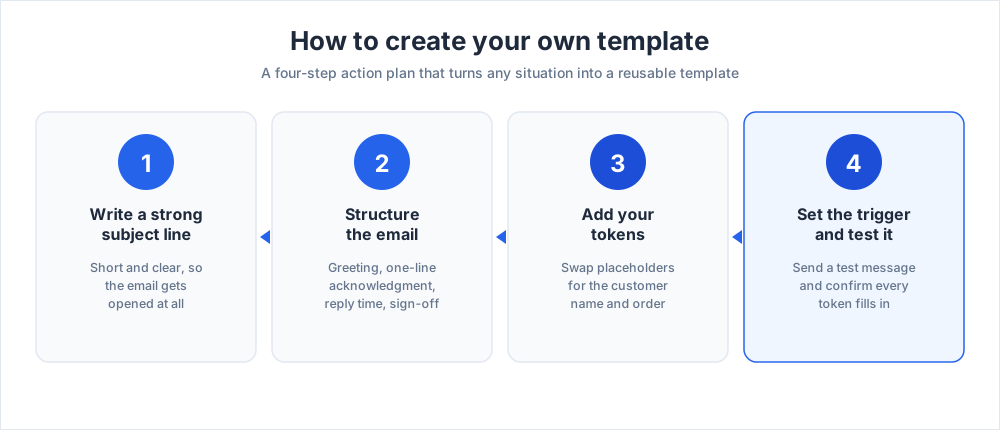
The 14 examples above are a head start, but every team eventually needs templates of its own. This four-step action plan turns any situation into a reusable template your customers can rely on, and you can use this guide as the checklist each time.
Write a strong subject line
The subject line decides whether the automated email is opened at all. Keep it short and clear, such as "We have received your request" or "Your order is confirmed", so customers know the message matters before they even click.
Structure the email
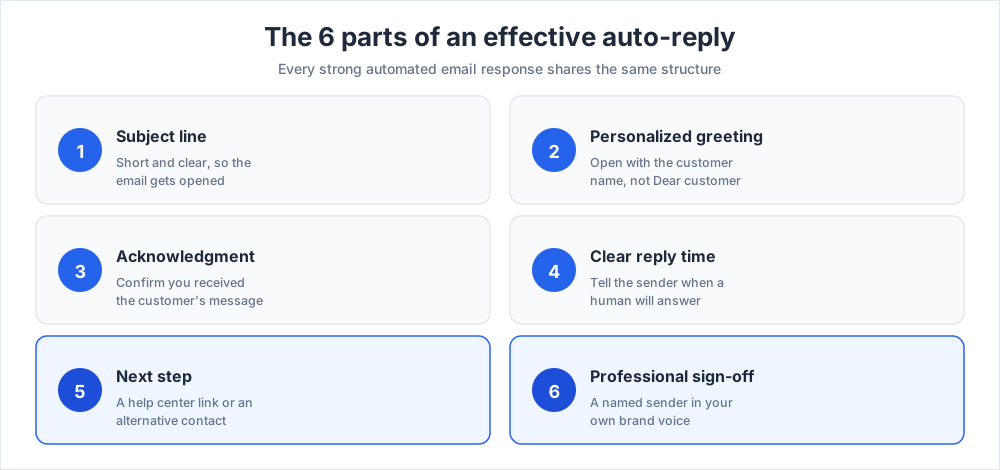
Give every template the same structure: a personalized greeting, a one-line acknowledgment, what happens next with a clear reply time, and a polite sign-off from a named sender. A consistent structure makes templates fast to write and easy for customers to read.
Add your tokens
Replace every bracketed placeholder with a real token: the customer name, an order number, a ticket number, a date. Tokens are what let one template serve thousands of customers while still feeling personal to each one. Without them, every automated email reads like a form letter.
Set the trigger and test it
Choose the event that fires the response, then test it before it goes live. Send yourself a message that matches the rule, check the automated email arrives correctly, and confirm every token fills in. Test once, and the template runs reliably from then on.
How to tell whether your auto-replies are working
An automated email is not a set-and-forget tool. A few simple numbers tell you whether your support still feels fast, or whether the wording has drifted out of date.
Start with speed. The auto-reply promises a response window; your support team has to keep it. Compare the time you promise with the time customers actually wait for a human answer. If the gap is growing, change the promise or add help, but never let an automated email make a promise the business cannot keep.
Watch open and response rates next. Most email tools report how many people open each automated email and how many write back. A healthy auto reply is opened often, because customers want the answer it carries. A sharp drop usually means the subject line or the timing needs work.
The most useful feedback is qualitative. When customers reply to an auto-reply confused or annoyed, that is a clear signal. Read those messages every few weeks and let them guide the next round of edits to your templates.
Common auto-reply mistakes to avoid
A few mistakes turn a helpful automated email into a frustrating one. Watch for these patterns in your own messages and templates:
- No expectation set, so the customer cannot tell when a human will answer.
- A robotic, generic tone, with no name and no personalization at all.
- A dead end: no next step, no help center, and no backup contact.
- An out-of-office message left switched on long after you are back at your desk.
- Skipping the test, so the automated email fires at the wrong moment or never fires at all.
Each of these is easy to fix. A quick review of every template once a quarter keeps the whole support system accurate, on-brand, and genuinely useful to the customers it serves.
Key takeaways
Automated email response templates are one of the highest-return, lowest-effort tools a business has. They give every customer an instant, professional reply, set a clear expectation, and free your support team for the work that needs a person.
Start with the 14 examples above, set them up in your email tool or a help desk, add your tokens, and test every template before it goes live. Use this guide as a checklist, and review the wording each quarter so it stays accurate as the business grows.
For more on customer communication, see our guides to following up with potential clients, customer service fundamentals, and writing a professional email, and consider adding Chatim live chat so customers can reach you instantly on your site, not only by email.
Frequently Asked Questions
What is an automatic email reply?
An automatic email reply, or auto-reply, is a pre-written message your email tool sends on its own when a trigger fires, such as a new message arriving or a contact form being submitted. It confirms the message was received and tells the sender what happens next. The reply goes out instantly, with nobody typing it, which is why it is so useful for support inboxes and out-of-office cover.
What should an auto-reply email say?
A good auto-reply does four things: it greets the sender by name, confirms you received their message, sets a clear response time such as 'within one business day', and offers a next step like a help center link or an alternative contact for urgent issues. Keep it short and on-brand. Avoid promising a response time you cannot keep, since a broken promise is worse than no promise at all.
How long should an out-of-office message be?
An out-of-office message should be short, usually two to four sentences. Say that you are away, give a return date, and tell the sender what to do in the meantime, either to wait for your return or to contact a named colleague for anything urgent. There is no need to explain why you are away. Clarity matters more than length: the sender just needs to know when to expect a reply.
Can I set up an auto-reply for specific senders only?
Yes. Most email tools let you narrow the trigger so an auto-reply fires only for certain senders or messages. In Gmail, filters can match a sender, a subject, or a keyword and send a chosen template. In Outlook, rules do the same. This is useful when you want one reply for customers, another for suppliers, and none for internal email. Map out which senders need which message before you build the rules.
What's the difference between an auto-reply and a canned response?
An auto-reply is sent automatically by a trigger, with no human involved. A canned response is a saved template that a person inserts manually while writing a reply, then edits before sending. Auto-replies are best for instant acknowledgments and out-of-office cover; canned responses are best for common questions that still need a person to confirm the details. Many support teams use both.
How do I set up an auto-reply for a shared inbox?
A shared inbox used by a support team is best served by a help desk rather than a personal email client. The help desk watches the inbox, fires an auto-reply on each new message, and opens a ticket. If you only have a plain shared mailbox, one team member can set a vacation responder or a rule, but a help desk gives you better triggers, reporting, and visibility for everyone on the team.
What should I write in an away message for Outlook?
In Outlook, open 'Automatic Replies' under File. Write a short message that states you are away, gives a return date, and points urgent senders to a named colleague or a help center link. You can set separate text for people inside and outside your organization. Set the date range so the message switches off on its own, and remember to confirm it has stopped once you are back.
Can auto-replies hurt customer relationships?
A poorly written auto-reply can. A robotic, generic message with no name, no clear response time, and no next step can feel like a brush-off. A good auto-reply does the opposite: it reassures the customer that the message landed and help is coming. The risk is not automation itself but vague wording and broken promises. Personalize the message, set an honest expectation, and review the templates every quarter.
Should I include a link to my FAQ or help center?
Yes, where it is relevant. A link to your FAQ or help center turns a holding message into a useful one, because some customers will solve the problem themselves while they wait for a human reply. Place the link as a clear next step, not buried in the text. Skip it only when the auto-reply is purely a confirmation, such as a payment receipt, where there is nothing for the customer to look up.
How do I set up an automated reply in Gmail?
In Gmail, open Settings, find 'Vacation responder' on the General tab, set the date range, paste your template, and turn it on. For replies based on rules rather than dates, use filters: a filter can match a sender, subject, or keyword and send a chosen template automatically. Filters let one inbox handle several kinds of message, which is enough for most small teams.
Are automated email response templates worth it for a small business?
For most small businesses, yes. Templates give every customer an instant, professional reply even when the team is small or offline, which protects the customer experience and saves hours of routine typing. The setup cost is low, since most email tools include a built-in autoresponder at no extra charge. Start with two or three templates for your most common situations, then add more as you see which messages repeat.
How often should I update my email templates?
Review your templates about once a quarter, and sooner if something changes, such as your business hours, your help center URL, or your team's real response time. A quick read-through catches wording that has gone stale or a promise the team can no longer keep. Reading the replies customers send back to your auto-replies is the fastest way to spot a template that needs work.
What is the difference between an autoresponder and an email workflow?
An autoresponder sends a single template when a trigger fires. An email workflow is a sequence, where one message leads to the next based on what the customer does, such as an order confirmation followed by a shipping update and then a feedback request. Start with one autoresponder and one template. Once that works reliably, build workflows for the journeys that repeat most often.
Related articles
More in Tools & productivity →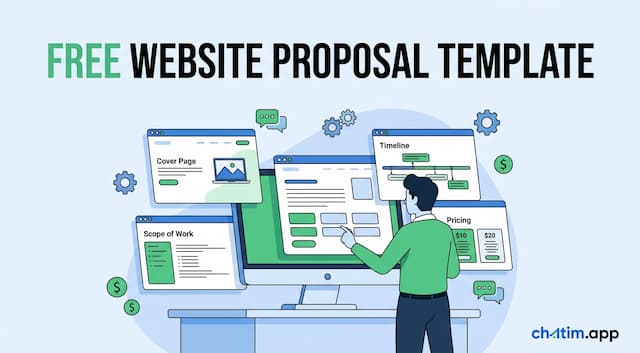 Website Proposal Template: 8 Sections That Win (2026)
A free website proposal template with all 8 sections copy-paste ready, plus the walkthrough: scoping, three-tier pricing, follow-up, and the expiry date.
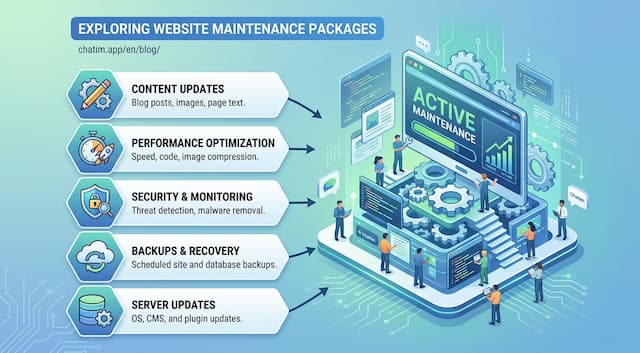 Website Maintenance Packages: What to Include & Charge (2026)
What goes into a website maintenance package, how providers price three tiers, the full maintenance checklist, and the recurring line items clients notice.
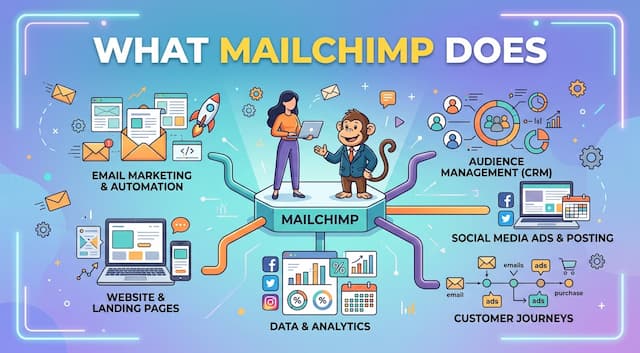 What Is Mailchimp? A Complete Guide to What It Does
Mailchimp is a leading email marketing platform. Learn what it is, what it does, its features and plans, and top alternatives.
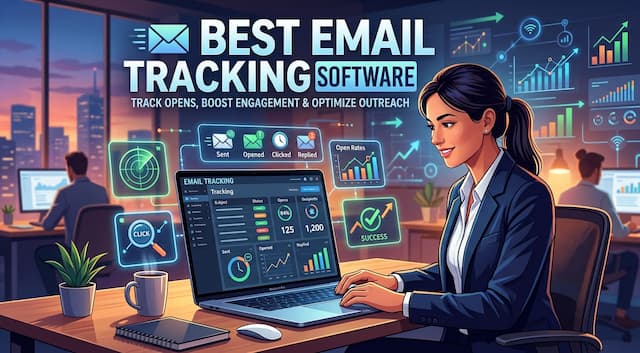 20 Best Email Tracking Software Tools to Use in 2026
20 email tracking tools compared: Mailtrack, HubSpot, Mixmax, Mailchimp, ZeroBounce. Pricing, free tiers, Gmail and Outlook picks for sales teams.