What is a free image resizer?
A free image resizer is an online photo tool that changes the dimensions of image files - width, height, or both - and saves a new copy at the new image size. The free image resizer above accepts JPG, PNG, GIF, and WebP image files and runs entirely in your browser. There's no signup, no upload to a server, and no watermark on the resized image.
Most use cases for a resizer are routine: shrinking a photo for a website, fitting an image into an email signature, generating different sizes for social media uploads, or making sure a JPEG file fits a strict file-size requirement on a job application or government form. A reliable resizer handles all of these without an account.
Where a full photo editor like Adobe Express, Canva, or Photoshop offers dozens of features beyond resizing, a focused image resizer does one thing fast: change image size, keep image quality high, download. The free image resizer here is the small-and-fast option.
When to use an online photo resizer
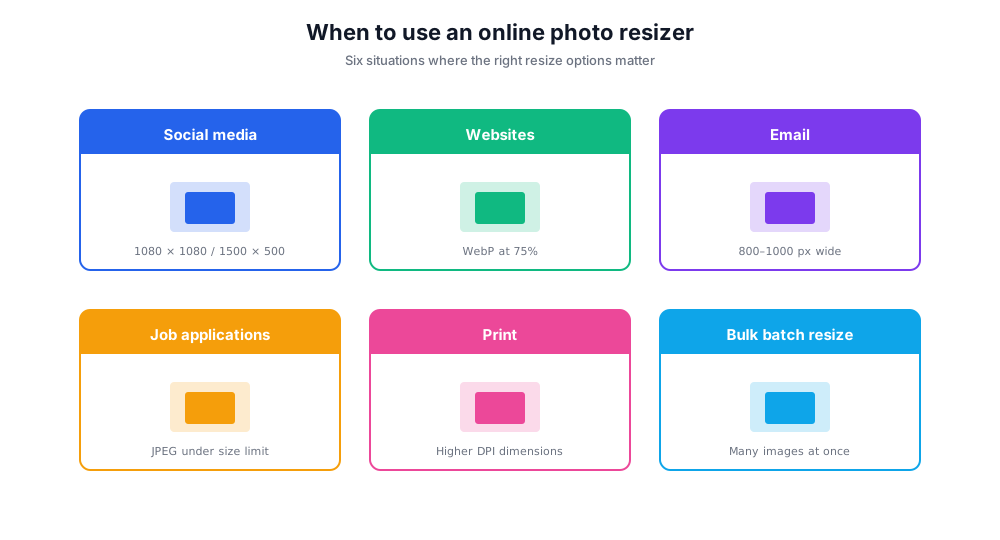
Different image-resizing situations call for different settings. The right resize options can be the difference between a sharp result and a soft, low-quality one.
Resize images for social media
Each platform has different aspect ratio and size limits - Instagram square 1080×1080, Twitter/X header 1500×500, LinkedIn banner 1584×396, Facebook post 1200×630. Set width and height, lock aspect ratio, and download.
Compress images for websites
Page-speed scores reward smaller image files. Drop a 4 MB hero photo into the resizer, scale to 1920px wide, set quality at 75%, output as WebP - typical result is under 200 KB with image quality intact.
Resize photos for email and chat
Email clients (Gmail, Outlook, Apple Mail) often resize image attachments awkwardly. Pre-resize to 800-1000px wide before sending and the recipient sees the photos exactly as you intended.
Resize photos for job applications and forms
Government forms, visa applications, and job portals often demand JPEG image files under a strict size or in a specific dimension. Resize first, then upload.
Print preparation
Print needs higher pixel density (DPI) than screens. Use the resizer to set print dimensions before sending to a print service.
Bulk batch resize for galleries
When uploading many images to a website or gallery, a consistent target size keeps the layout clean. The free image resizer above handles one file at a time; for batch processing of dozens of photos, a bulk resizer like Bulk Resize Photos is faster.
How to use the resizer
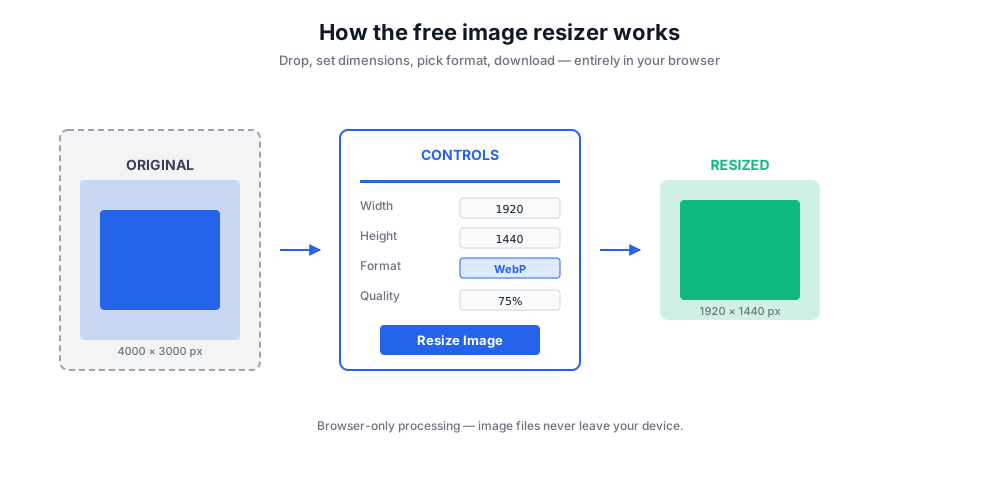
Drop an image into the box, set the new image size, pick a format, click Resize. Everything runs in your browser - image files stay on your device.
- Drag and drop an image or click to pick one from your device.
- Set width and height - toggle the aspect ratio lock to keep the image proportional.
- Pick a format (JPG, PNG, WebP) and adjust the image quality slider.
- Click Resize Image - the resized image appears immediately.
- Click Download - the resized image saves to your device. Nothing is uploaded to a server.
Image file formats - JPEG, PNG, WebP, GIF
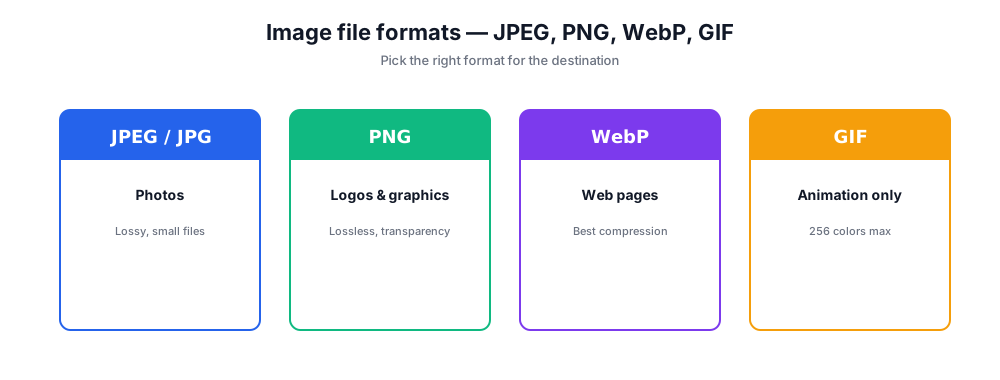
Picking the right output format matters as much as image size. Each format has trade-offs.
JPEG (JPG)
The standard for photos. Compressed (lossy), small image files, fine for any photograph. Use 70-85% quality for the best size-to-quality ratio. Avoid JPEG for graphics with sharp edges or text - use PNG instead.
PNG
Lossless compression, larger image files, supports transparency. Use PNG for logos, icons, screenshots, and graphics with text. Don't use it for photos - image files balloon to 5-10× the JPEG equivalent.
WebP
Modern format with better compression than JPEG and PNG. Best for websites - Google PageSpeed loves WebP. Wide browser support (Chrome, Firefox, Safari, Edge). Some older email clients and CMS platforms still don't recognize it.
GIF
Limited to 256 colors, supports animation. Use only for animated graphics. For static images, GIF is almost always the wrong choice - use PNG or JPEG.
Image quality and compression options
The image quality slider in the resizer controls JPEG/WebP compression. The quality value is a 0-100 number - higher means less compression and a larger image file, lower means more compression and a smaller file. The visual difference between quality 100 and quality 85 is usually invisible to the human eye; the file-size difference is often 50% or more.
Practical defaults: web hero images at 75% quality, blog body photos at 70%, social-media uploads at 80-85%, print-bound images at 95% or higher. Below 60% you start to see compression artifacts (blocky edges, color smearing) on detailed photos.
Resizing and compression do different things. Resize options change the dimensions of the image. Compression options change how the existing dimensions are encoded. The free image resizer above does both in one pass - pick the output dimensions and the quality, click resize, get a single optimized result.
Free image resizer vs Adobe Express, Canva, and other photo editor tools
There are many image resizers online. Here's where this resizer fits.
Chatim Free Image Resizer (this tool)
Pros: No signup. Browser-only - image files never leave your device. Sub-second resize. JPG, PNG, WebP output. Aspect ratio lock. Quality slider. Mobile-friendly.
Cons: One image at a time. No advanced photo editor features (crop, filter, layers). 10 MB max file size.
Adobe Express
Pros: Full photo editor, presets for every social platform, AI-driven enhancements.
Cons: Requires Adobe account. Heavier interface for what is fundamentally a resize task.
Canva
Pros: Integrated design suite. Drag and drop. Templates for every social channel.
Cons: Requires Canva account. Resized image lives inside a Canva canvas, not as a clean standalone export.
Bulk Resize Photos
Pros: Free, browser-only, supports bulk batch resize.
Cons: Less customization than a single-image flow. UI optimized for batch workflow.
ImageResizer.com / ResizeImage.io
Pros: Free image resizers with simple interfaces.
Cons: Some upload images to their server before processing - less private than a browser-only tool.
If you need to resize one or two images quickly without a signup or upload, this resizer is the fastest path. For a full photo editor with cropping and filters, Adobe Express or Canva are better fits. For batch resizing dozens of photos at once, a dedicated bulk tool wins.
Tips for resizing without losing image quality
Always shrink, never enlarge. Scaling an image up adds pixels that don't exist - the result looks blurry. Start from the highest-resolution original you have and resize down.
Lock aspect ratio for photos. Toggling the aspect ratio lock keeps proportions intact. Free-form scaling distorts faces and objects.
Use WebP for web, JPEG for email, PNG for graphics. Match the format to the destination. WebP wins on file size for websites; JPEG is the universal email-safe option; PNG is for anything with text or transparency.
Test quality settings before committing. Resize the image with quality 75%, then 85%, and compare. Often 75% is indistinguishable and saves 30% in size.
Resize after editing, not before. Crop, color-correct, and edit the photo at full resolution. Resize as the last step before publishing.
Keep the original. Always work from a copy. The resized image is one-way - re-upscaling later won't recover the lost detail.
Privacy: image files never leave your browser
Most online tools upload your image files to a server, run the resize there, and send the result back. The free image resizer above does the entire resize locally - your photos and image files never leave your device, never touch our servers, and aren't logged.
Browser-only image resizing matters most for sensitive photos: ID documents, signed contracts photographed for sharing, family photos, work-in-progress design files. Local processing keeps the image quality and the privacy intact in the same step.
Local processing also means the tool keeps working if your wi-fi drops mid-session. Once the page loads, every resize runs offline in your browser.