Gmail Labels: The Complete Guide to a Tidy Inbox
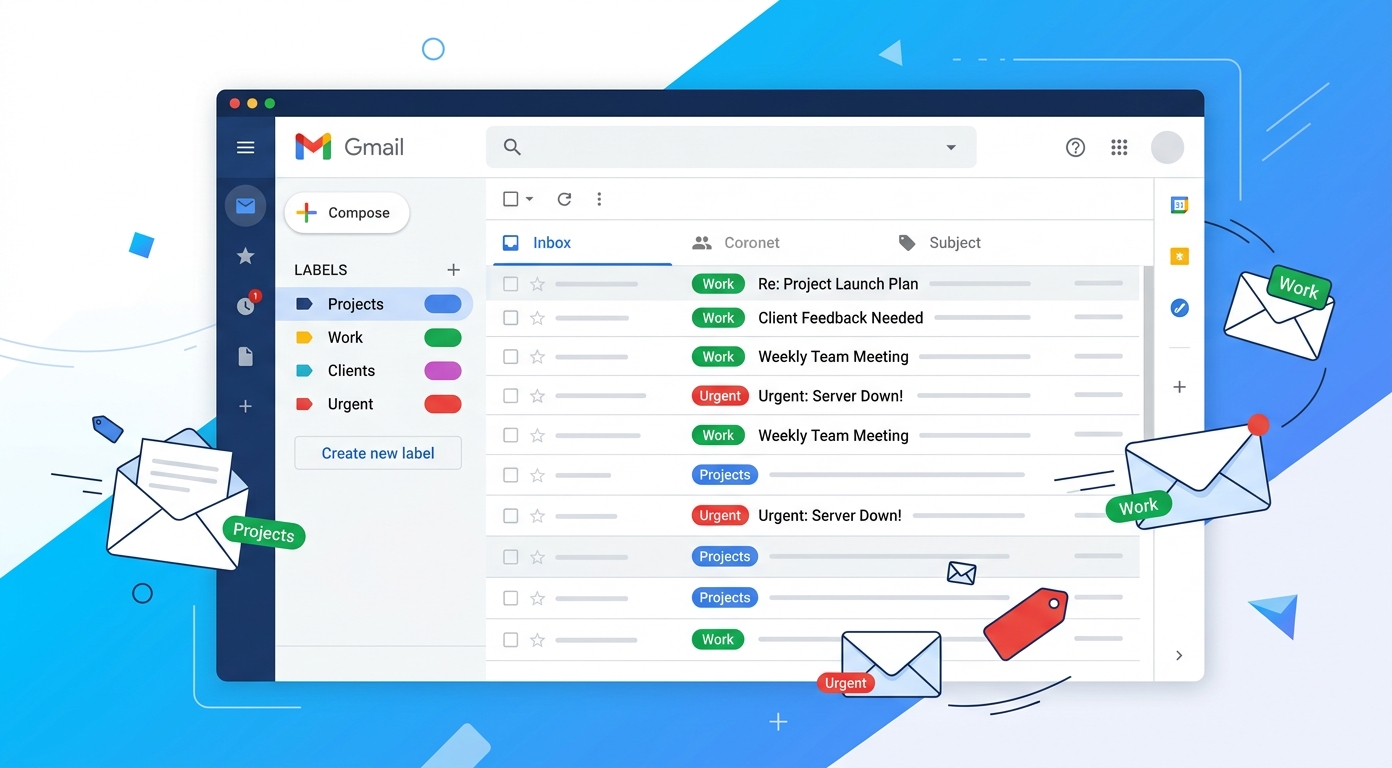
If your inbox feels like a pile of unread mail you can never quite tame, Gmail labels are the fix. Gmail labels are flexible tags you attach to messages so you can sort, find, and act on email without losing anything. This guide to Gmail labels covers what Gmail labels are, how to create a label, how to apply labels to your emails, how to automate them with filters, and the best practices that keep your label system tidy. Gmail labels are simple to set up, and once you create your first few, the payoff is immediate. By the end you will be able to turn a messy inbox into a calm, organized workspace built around Gmail labels.
What are Gmail labels?
A Gmail label is a tag you assign to an email. Unlike a physical filing cabinet, where a document lives in exactly one drawer, a Gmail label lets a single message carry many tags at once. That small difference is what makes Gmail labels so powerful for inbox management. When you create a label in Gmail, you are really making a flexible category that any number of emails can share.
How labels work in Gmail
Gmail labels work as keywords attached to messages in your account. When you apply a label, the email shows up whenever you click that label in the Gmail sidebar, while still living in your inbox or archive. One email from a client could carry the labels "Clients" and "Invoices" at the same time, so it appears in both views. This is the core of how Gmail labels work: one message, as many categories as you need.
Because labels are tags rather than boxes, they never trap an email in a single place. You can browse all messages under a label, search inside it, and still keep everything together. For anyone with heavy email traffic, that flexibility makes finding the right message far faster.
How Gmail labels compare with folders
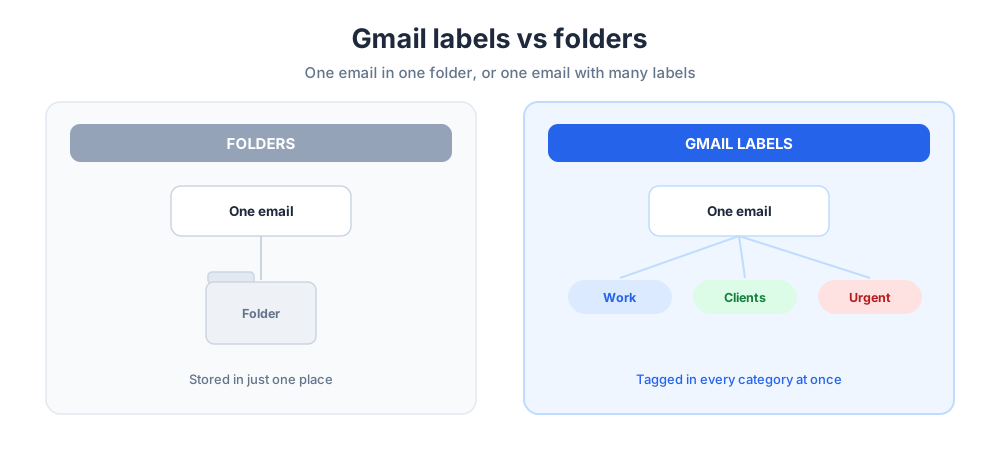
The clearest way to understand Gmail labels is to see how they stack up against folders. A folder is a single storage location: a file goes in one folder and nowhere else. A Gmail label is a tag, so the same email can hold multiple labels and surface in several places. That is the key way Gmail labels are different from folders.
This matters when you organize emails in Gmail. With folders, a work email is either in "Project A" or in "Urgent." With Gmail labels, it can be both. If you have used other email systems that sort emails into folders, Gmail labels will feel similar at first, but the freedom to apply several labels to one message is the real upgrade.
How to create labels in Gmail
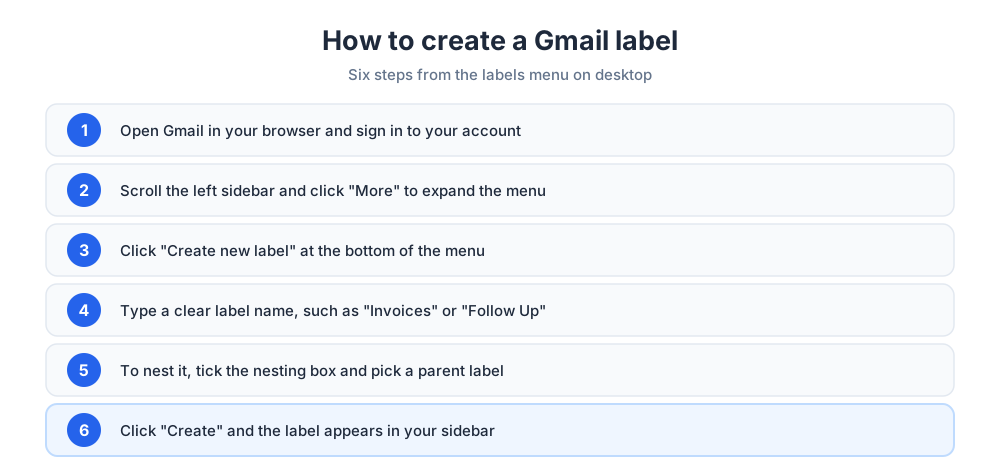
You can create a label in Gmail in less than a minute, and you can create as many as you need. The steps below show how to create a label using the labels menu in the Gmail sidebar on a desktop browser. Once you know how to create a label, the rest of your Gmail labels system falls into place quickly.
- Open Gmail in your browser and sign in to your Gmail account.
- In the left sidebar, scroll down and click "More" to expand the full menu.
- Click "Create new label" at the bottom of that menu.
- Type a clear label name, such as "Invoices" or "Follow Up."
- To nest it, tick the nesting box and pick a parent label.
- Click "Create" and the new label appears in your sidebar list.
Once you create a label, it sits in the sidebar ready to use. Repeat the steps to create as many labels as you need, so every important category has its own tag. It is fine to create a label for clients, another to create one for receipts, and so on. A short, consistent label name keeps the menu easy to scan later.
Create a label on your phone
You can also create a label on your phone. Launch Gmail on the device, tap the menu in the top-left corner, scroll to the bottom, and tap "Create new" under Labels. Type a name and save. You can create a label this way on both Android and iPhone, and your Gmail labels stay in sync across every device tied to your Google account.
How to apply labels to emails in Gmail
Knowing how to create a label is only half the job. To organize emails in Gmail, you need to apply your Gmail labels to the emails themselves. Gmail gives you a few quick ways to tag your email.
Apply labels to single and multiple messages
To label one email, open it or select it in the list, click the label icon in the toolbar, and choose one or more labels from the dropdown. You can apply multiple labels to the same email in a single step, which is handy when an email belongs to several projects at once.
To label multiple emails together, tick the checkbox beside each one, then use the same label icon. This lets you tag a whole batch of related emails quickly. If you want an email to leave the inbox and live only under its label, choose "Move to" instead of "Label," which moves it out of the main inbox view while keeping it under the label.
You can also drag a message onto a label in the Gmail sidebar, or label an email as you send it. However you do it, the goal is the same: every email ends up under the labels that make it easy to find.
Managing labels in Gmail settings
Over time your label list will grow, so it helps to tidy it now and then. Most label controls live in Gmail settings, under a dedicated Labels tab.
- Click the gear icon in the top-right corner of Gmail.
- Choose "See all settings," then open the "Labels" tab.
- Use the row for each label to show, hide, edit, or remove it.
Renaming and editing labels
To rename labels, open the Labels tab in settings, find the label, and click "Edit" to change its name, or use the three-dot menu next to the label in the sidebar. Editing a label name updates it everywhere at once, so every tagged email follows the change. Renaming is the easiest way to keep older labels accurate as your work shifts.
Show, hide, and reorder your label list
The Labels tab also controls which of your available labels appear in the sidebar. You can set each label to show, hide, or show only when it contains unread mail. Hiding rarely used labels keeps the menu short, while pinning your preferred labels near the top puts the ones you click most within easy reach.
Color coding labels by priority
Color is one of the most useful label features. Assigning a color to a label turns a plain list into a visual system you can read at a glance.
To add color, hover over a label in the sidebar, click the three-dot menu, and choose "Label color." Pick a background and text color from the palette, or set a custom color. A color system works best when it follows a simple rule: make urgent labels red, work labels blue, and personal emails green, for example. Once your eye learns the colors, you spot the important messages instantly without reading a single subject line.
Nested labels and label structure
For bigger systems, Gmail lets you nest one label inside another. A nested label, sometimes called a sublabel, sits under a parent label and creates a clear hierarchy.
For example, a parent label called "Work" can hold a sublabel for each client or project. To build this label hierarchy, create a new label and tick the nesting option, then choose the parent. Nesting keeps related labels grouped instead of scattered down the sidebar, which is ideal when you manage many projects or topics. Expand a parent label to see its children, or collapse it to keep the menu compact.
Automatic labels with Gmail filters
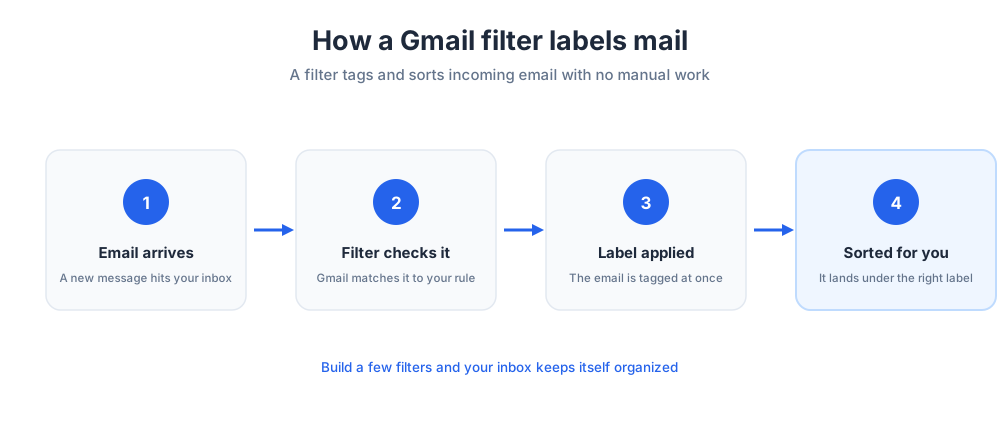
Tagging email by hand works, but the real time-saver is letting Gmail do it for you. A filter can auto-apply a label to incoming mail the moment it arrives, so messages sort themselves.
- Click the filter icon in the Gmail search bar, or type your search criteria.
- Enter a rule, such as a specific sender, subject word, or address.
- Click "Create filter," then tick "Apply the label."
- Pick an existing label or create a new one for the filter to use.
From then on, any message that matches automatically picks up the label. Using labels with filters is perfect for newsletters, receipts, email notifications, and anything from a regular sender, since those emails get sorted without you lifting a finger. A handful of well-built filters can keep an entire inbox tidy on its own.
Removing labels in Gmail
When a label has outlived its purpose, removing it keeps your system clean. To remove labels in Gmail, open Settings, go to the Labels tab, find the label, and click "Remove." Gmail asks you to confirm, and the label disappears from your sidebar. Deleting a label does not delete the emails under it; those messages simply lose that one tag.
If you only want to take a label off a single email rather than delete it entirely, open the message, click the label, and choose "Remove label." Trimming labels you no longer use stops the sidebar from becoming cluttered with categories you have forgotten.
Using labels in the Gmail mobile apps
Gmail labels are not limited to the desktop. The Gmail app on Android and iPhone shows the same labels, so your system travels with you. Open the Gmail mobile app, tap any email, and use the three-dot menu to change labels or move the email. Tap the main menu to browse messages under each label, exactly as you would on a computer. Both Gmail apps keep your labels current the moment you change them anywhere.
Label tips and best practices
A few habits keep Gmail labels working for you instead of becoming clutter of their own.
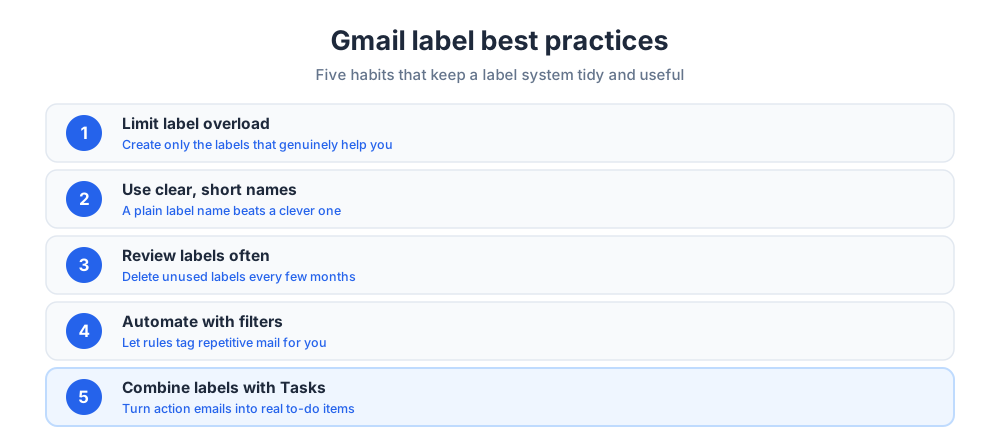
- Limit label overload: create only labels that genuinely help.
- Use clear names: a short, plain label name beats a clever one.
- Review labels often: delete unused ones every few months.
- Lean on filters: let rules tag repetitive mail for you.
- Combine labels and Tasks: turn action emails into real tasks.
It also helps to pair Gmail labels with other Google tools. Star or snooze emails that need a follow-up, and move genuine to-do items into Google Tasks so your label system stays about organizing rather than tracking. If you share a workspace, agreeing on a common set of labels helps the whole team find what they need. Saved templates for repeated replies pair nicely with a clean label system, since both cut the time you spend on routine email management.
Related articles and next steps
A tidy inbox is one piece of staying organized at work. Once your labels are set, it is worth looking at the tools that connect to your email. Our roundup of Chrome extensions for Gmail adds features Gmail does not include out of the box, and a good email tracking tool shows you when your messages get opened. If you send to large lists, the guide to email blasts explains how to reach everyone at once, and pairing labels with marketing automation tools keeps outbound email as organized as your inbox.
Gmail labels FAQs
Short answers to the questions people ask most about labels in Gmail are covered below. If you are still deciding whether the system is worth the setup time, these quick answers should help you get oriented before you dive in and try it for yourself.
Frequently Asked Questions
How do labels work in Gmail?
Gmail labels work like tags you attach to emails. When you apply a label to a message, that email appears whenever you click the label in the sidebar, while still staying in your inbox or archive. A single email can carry several labels at once, so it can show up under more than one category. You can also browse, search, and act on all the messages under any label, which makes finding the right email much faster.
How do I create a new folder or label in Gmail?
Gmail does not use traditional folders; it uses labels, which do the same job with more flexibility. To create one, open Gmail in a browser, scroll down the left sidebar, click "More," then "Create new label." Type a name, choose whether to nest it under a parent label, and click "Create." The new label appears in your sidebar, ready to tag any email.
How to make certain emails automatically go to a folder in Gmail?
Use a Gmail filter. Click the filter icon in the search bar, enter a rule such as a sender or a subject word, then click "Create filter." Tick "Apply the label" and pick the label you want. From then on, every matching email is labeled automatically as it arrives. To keep those emails out of the main inbox, also tick "Skip the Inbox" in the filter options.
What's the difference between labels and folders in Gmail?
A folder is a single location: a file lives in one folder and nowhere else. A Gmail label is a tag, so the same email can hold several labels and appear in several places at once. Gmail is built entirely around labels rather than folders, which is why one message can sit under "Work" and "Urgent" together. That flexibility is the main advantage of labels.
Can one email have multiple labels in Gmail?
Yes. Applying multiple labels to a single email is one of the biggest advantages of the label system. Select the email, click the label icon in the toolbar, and tick every label that fits. The message then appears under each of those labels while still living in one place, so you never have to choose just one category.
How do I color code labels in Gmail?
Hover over a label in the sidebar, click the three-dot menu, and choose "Label color." Pick a background and text color from the palette, or set a custom one. Color coding works best with a simple rule, such as red for urgent and blue for work, so you can spot priority emails at a glance without reading any subject lines.
What are nested labels in Gmail?
A nested label, also called a sublabel, sits inside a parent label to create a clear hierarchy. For example, a "Work" label can hold a sublabel for each client or project. To nest a label, tick the nesting option when you create it and choose the parent label. Nesting keeps related labels grouped together instead of scattered down the sidebar.
How do I rename a label in Gmail?
Open Gmail settings, go to the Labels tab, find the label, and click "Edit" to change its name. You can also use the three-dot menu next to the label in the sidebar and choose "Edit." Renaming updates the label everywhere at once, so every email already tagged with it follows the change automatically.
How do I delete a label in Gmail?
Open Settings, go to the Labels tab, find the label you no longer need, and click "Remove." Gmail asks you to confirm, then the label disappears from your sidebar. Deleting a label does not delete the emails under it; those messages simply lose that one tag and stay in your inbox or archive.
Do Gmail labels work on the mobile app?
Yes. The Gmail app on Android and iPhone shows the same labels as the desktop version. Tap an email and use the three-dot menu to change its labels or move it, or open the main menu to browse messages under each label. Your labels stay in sync across every device tied to your account.
How many labels can I create in Gmail?
Gmail allows a very high number of labels, far more than most people will ever need. The practical limit is your own organization, since too many labels makes the sidebar hard to scan. A focused set of clear, well-named labels works far better than dozens of overlapping ones.
Why can't I see all my labels in the sidebar?
Gmail lets you set each label to show, hide, or show only when it contains unread mail. If a label is missing from the sidebar, it is probably set to hide. Open Settings, go to the Labels tab, and switch the label to "Show" to bring it back into view.
Do Gmail labels sync across devices?
Yes. Labels are tied to your Google account, not to one device, so any label you create or change appears everywhere you use Gmail. Tag an email on your laptop and the label is there on your phone moments later, which keeps your whole system consistent.
Related articles
More in Tools & productivity → Website Proposal Template: 8 Sections That Win (2026)
A free website proposal template with all 8 sections copy-paste ready, plus the walkthrough: scoping, three-tier pricing, follow-up, and the expiry date.
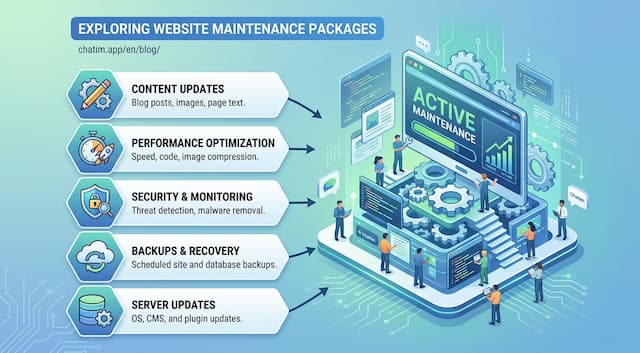 Website Maintenance Packages: What to Include & Charge (2026)
What goes into a website maintenance package, how providers price three tiers, the full maintenance checklist, and the recurring line items clients notice.
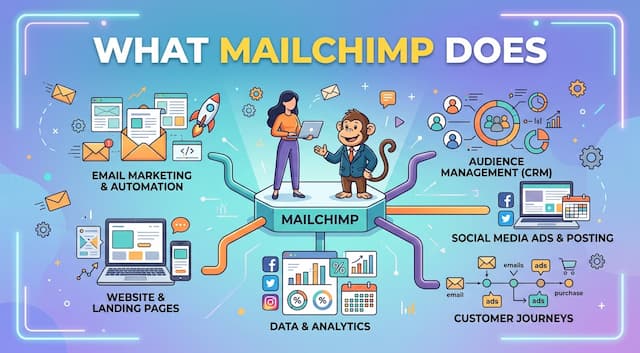 What Is Mailchimp? A Complete Guide to What It Does
Mailchimp is a leading email marketing platform. Learn what it is, what it does, its features and plans, and top alternatives.
 20 Best Email Tracking Software Tools to Use in 2026
20 email tracking tools compared: Mailtrack, HubSpot, Mixmax, Mailchimp, ZeroBounce. Pricing, free tiers, Gmail and Outlook picks for sales teams.