What is an email signature generator?
An email signature generator is an online email signature creator that lets you build a professional email signature without writing HTML or hiring a designer. The free email signature generator above gives you signature templates, a live signature preview, and one-click HTML export that pastes cleanly into Gmail, Outlook, Apple Mail, and Yahoo Mail.
A great email signature is more than a contact card. It's a small piece of branding that appears on every email you send - a beautiful email signature reinforces your role, your company, and your professionalism on every reply, follow-up, and cold outreach. The right email signature maker turns that one-off design task into a sixty-second job.
Compared to writing an HTML signature by hand or paying for a signature platform, a free email signature creator is faster, cheaper, and just as polished. The generated email signature works as a static HTML block that any modern email account can render - no plugins, no extensions, no tracking pixels.
Think of this online email signature generator as a small electronic signature for your day-to-day correspondence - not a legally binding e-sign block, but a visual identity that shows up on every email you send.
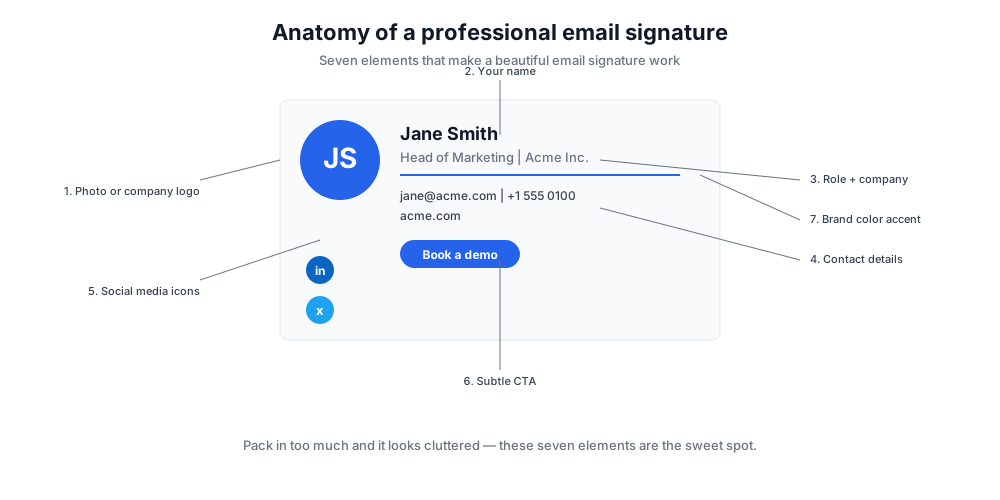
The 7 elements of a professional email signature
A professional email signature follows a tight visual formula. Pack in too much and it looks cluttered; leave key signature details out and you miss the brand opportunity. These seven elements cover what works across roles and industries.
Your name
Bold, slightly larger font. The name is the anchor - recipients scan it first when they reply.
Your role and company
One line, normal weight. Combine job title + company on a single line, separated by a pipe or bullet.
Primary contact details
Phone, email, website. Two or three at most. More than that and it feels heavy.
Photo or company logo
Square image, 80-100px. A photo humanizes outreach; a logo reinforces brand recognition.
Social media icons
LinkedIn for B2B; add Twitter or Instagram only if you actively post there. Dead links hurt trust.
A subtle CTA
Optional: 'Book a demo', 'Read our blog', 'Schedule time'. One CTA - never two competing ones.
Brand color accent
A single color line, divider, or social icon hue tied to your brand. One accent color, not a rainbow.
How to install your email signature in Gmail, Outlook, Apple Mail and Yahoo Mail
Installing the generated email signature takes a minute or two per email account. Below is the exact path inside the four most common email clients.
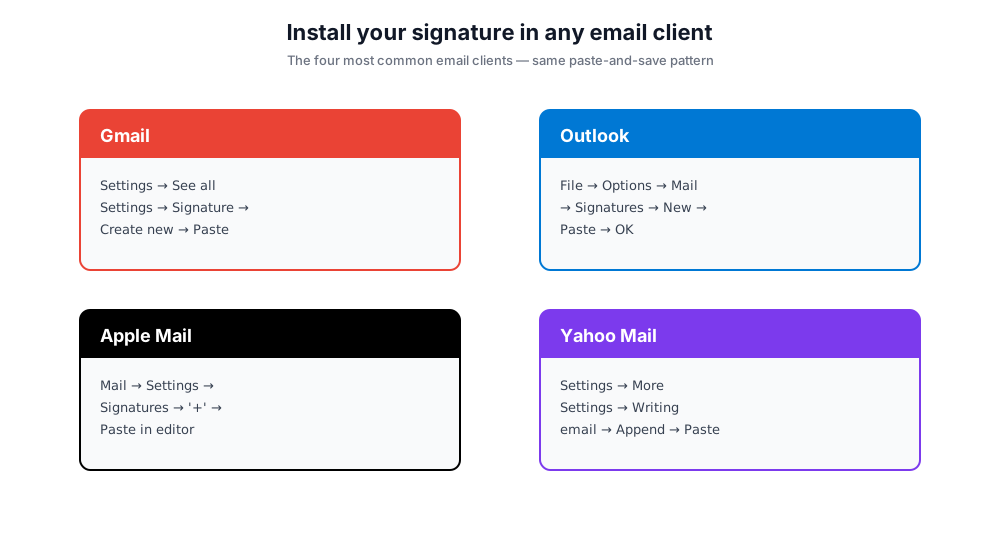
Gmail
- Click 'Copy Signature (HTML)' in the tool above.
- In Gmail, open Settings (gear icon) → See all settings.
- Scroll to the 'Signature' section and click 'Create new'.
- Name it, then paste it into the rich-text editor (Cmd+V or Ctrl+V).
- Set the new signature as the default for new messages and replies, then click 'Save Changes' at the bottom.
Outlook
- Copy it from the tool.
- In Outlook desktop: File → Options → Mail → Signatures. In Outlook on the web: Settings → Mail → Compose and reply.
- Click 'New' and give it a name.
- Paste into the editor and set defaults for new messages and replies.
- Click 'OK' (desktop) or 'Save' (web) - the new entry applies on the next email you send.
Apple Mail
- Copy it from the tool.
- In Apple Mail, open Mail → Settings (or Preferences) → Signatures.
- Pick the email account on the left, then click '+' under the middle column to create a new signature.
- Paste it into the right-hand editor. Uncheck 'Always match my default message font' so the formatting holds.
- Close the Settings window - it attaches automatically to every message you send from that account.
Yahoo Mail
- Copy it.
- In Yahoo Mail, click Settings (gear icon) → More Settings.
- Open 'Writing email' from the left sidebar and toggle 'Append a signature to all outgoing messages'.
- Pick the email address you want it on, paste the HTML into the editor.
- Click outside the box to save - it appears on the next message you compose.
If you use a different email platform - Thunderbird, ProtonMail, Spark, Hey, or a corporate webmail - the steps follow the same pattern: find Settings → Signature, paste the HTML or plain-text version, save. The tool also has a 'Copy as Plain Text' option for any email client that doesn't render HTML.
Email signature templates: pick the style that fits your role
Different roles get different mileage from different signature templates. The same beautiful email signature design that works for a CEO can look overwrought in a customer-support reply. Use these template patterns as starting points.
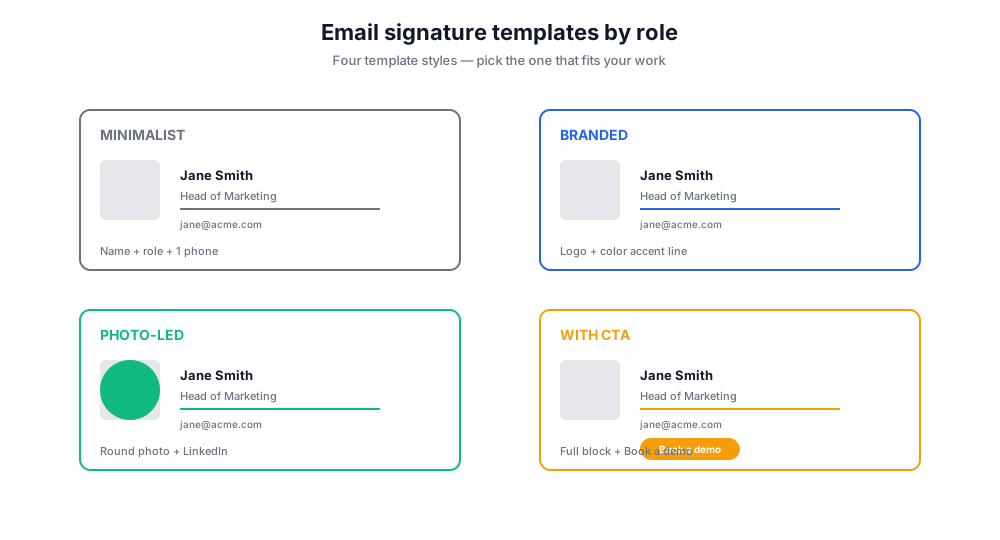
Minimalist signature template. Name, role, company, one phone number. No logo, no icons. Best for engineers, lawyers, and anyone whose recipients care about substance over branding.
Branded signature template. Logo on the left, name + role + contact stacked on the right, brand-color accent line. Best for marketing, sales, and customer-facing roles where every email is a brand touchpoint.
Photo-led signature template. Circular profile photo + name + role + LinkedIn. Warm and personal - great for recruiters, account executives, and partnerships.
Multi-line signature template with CTA. Full contact block plus a single CTA: 'Book a demo' or 'Read our latest case study'. Best for SDRs and content marketers driving toward a specific action.
Team email signatures: keep yours consistent across the org
Team email signatures are where most companies stumble. Three salespeople, three different fonts, three different logo sizes - it stops being a brand asset and becomes visual noise. A shared signature template solves it: one HTML block, one set of editable fields, one approved set of colors.
Roll out team email signatures by sending it templates as a one-page guide: which fields to fill, which to leave alone, and where to paste the result. Repeat the rollout once a quarter - new hires need it, and old hires drift. A free email signature maker like this one keeps the cost of consistency at zero.
For larger teams that need full governance - locked branding, central deployment, signature analytics - a paid signature platform makes sense. For everyone else, a free email signature creator and a shared style doc is enough.
Common mistakes to avoid in your professional email signature
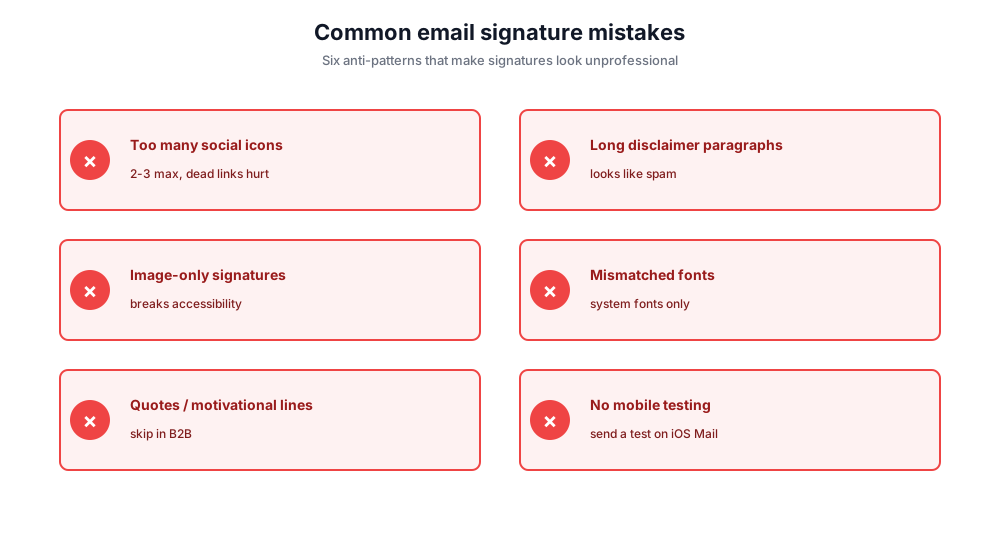
Cramming too many social icons. Two icons, max three. Every dead or rarely-used profile dilutes it.
Disclaimer paragraphs. Long legal disclaimers make every email look like spam. If the legal team requires one, push it below it in smaller, lighter text.
Image-only signatures. If the entire signature is a single image, it breaks accessibility, blocks copy-paste of contact details, and gets stripped by email security filters.
Mismatched fonts. If the email body uses one font and it uses another, replies look broken. Stick to system fonts (Arial, Helvetica, Inter).
Quotes or motivational lines. Industry data is divided, but in B2B contexts a quote tends to hurt more than help. Skip it unless it's genuinely on-brand.
No mobile testing. Half of business email is read on phones. Send yourself a test on iOS Mail and Gmail mobile before rolling out a new signature.
Free email signature generator vs paid signature platforms
Several signature platforms compete in this space. Here's where this free email signature generator fits.
Chatim Free Email Signature Generator (this tool)
Pros: No signup. Instant HTML copy. Live signature preview. Works in every email account. Mobile-friendly form.
Cons: No central team management or signature analytics.
HubSpot Email Signature Generator
Pros: Polished templates, integrates with HubSpot CRM contacts.
Cons: Requires HubSpot signup; more useful for HubSpot users than standalone.
WiseStamp
Pros: Wide template gallery, deep customization, team plans.
Cons: Free tier adds a 'Created with WiseStamp' line; full features behind paywall.
MySignature
Pros: Clean templates, Gmail Chrome extension for one-click install.
Cons: Free tier limited; team features paid.
If you need one signature right now and a clean HTML copy, the free email signature creator above gets you there in a minute. If you need locked-down branding and central deployment for fifty employees, a paid signature platform pays for itself.
Data privacy and safety
All signature generation happens entirely within your browser. No personal data is sent to our servers or stored anywhere. Your information remains private and secure. Images are embedded directly in it HTML.